
Trim, Split, Reorder
All Music Technology Worksheets
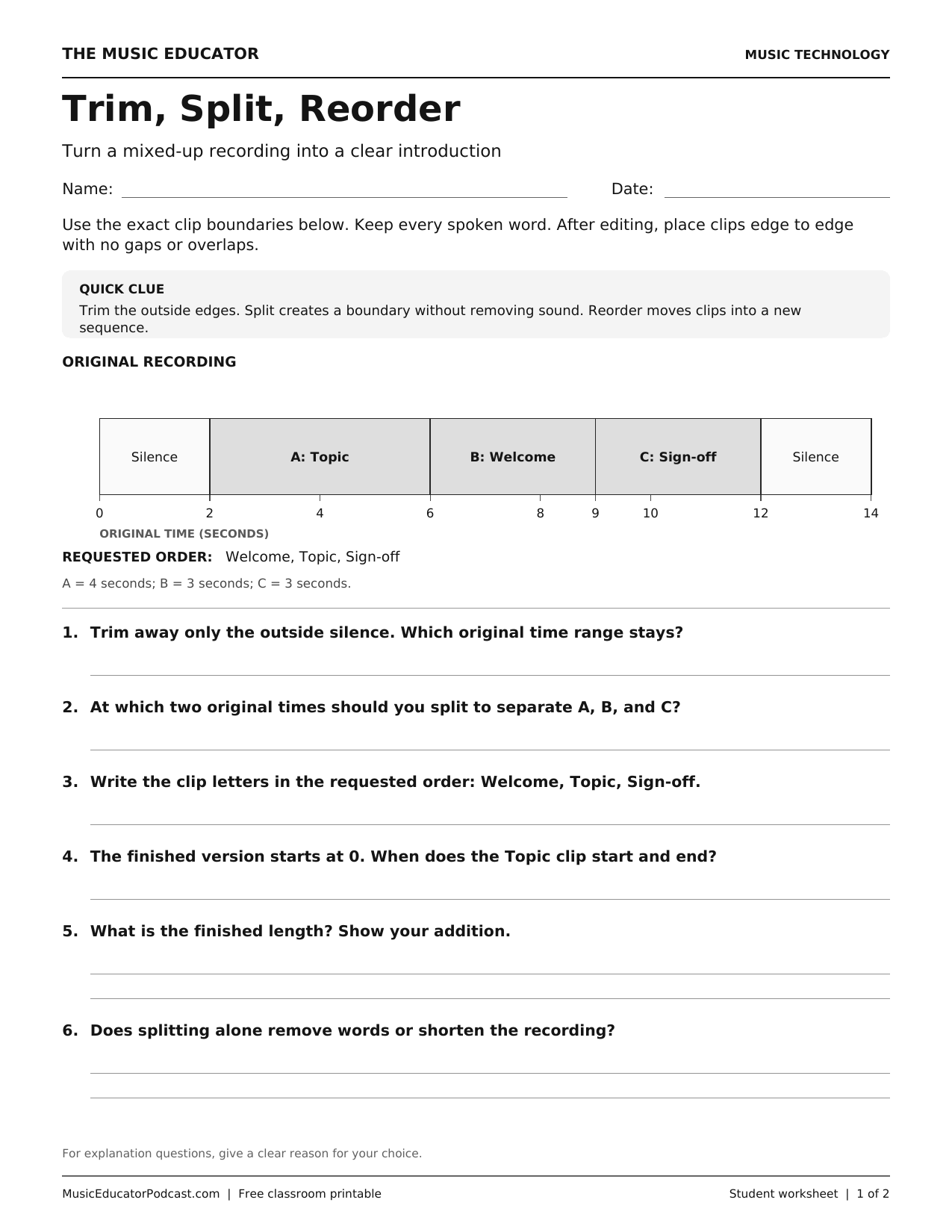
Trimming, splitting, and moving clips solve different problems. Students use an out-of-order spoken introduction to decide which operation is needed, keep all the words, and rebuild a ten-second sequence. The exercise explicitly separates original recording times from the finished timeline.
Learning objectives
- Identify the outer time range to keep after trimming.
- Locate split boundaries without deleting audio.
- Reorder labeled speech clips for a clear introduction.
- Calculate edited clip positions and total duration.
How to use this worksheet
Give students paper clip labels to rearrange before they write their answers. During a follow-up demonstration, model listening across each boundary so that words are not cut off. Emphasize that the worksheet assumes no gaps, overlaps, or speed changes.
What is included
The free two-page US Letter PDF contains one student worksheet followed by its matching answer key. Print page 1 for students; keep page 2 for discussion or checking. No audio files or software account are required.
Download worksheet and answer key (PDF)
Frequently asked questions
Do students need an audio editor?
No. All decisions can be made from the printed timeline. The activity can prepare students for a later software demonstration.
Does splitting delete audio?
No. In this exercise, splitting creates boundaries so that the pieces can be moved independently.
Will all editors preserve trimmed material?
Editor behavior varies. Keep a safe original recording and use the project-saving method recommended for your software.